
Embed Tryona Iframe on Your Shop Page
-
Register panel & set limits
Sign up at Tryona, log in, go to Panel Settings & configure client limits.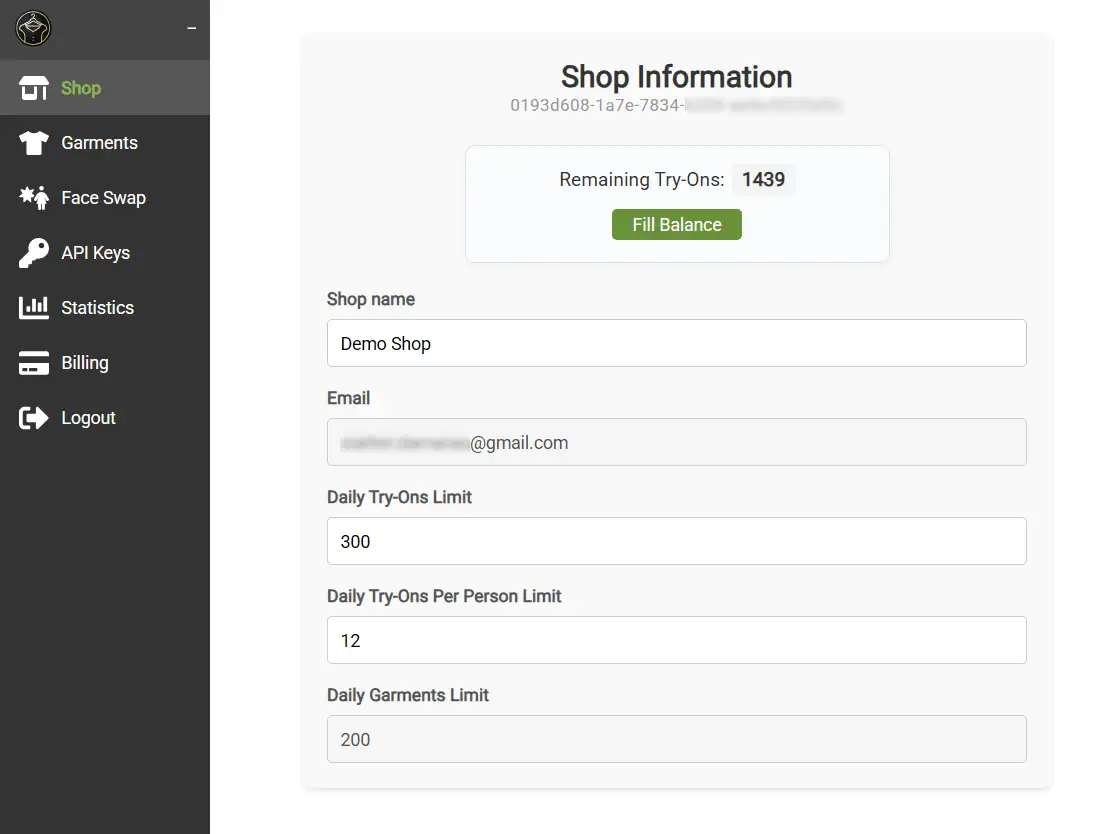
-
Get API key & configure domains
In the dashboard, open API Keys, copy your Public API Key. You can limit access to your shop domain or specific domains usingAllowed Domains.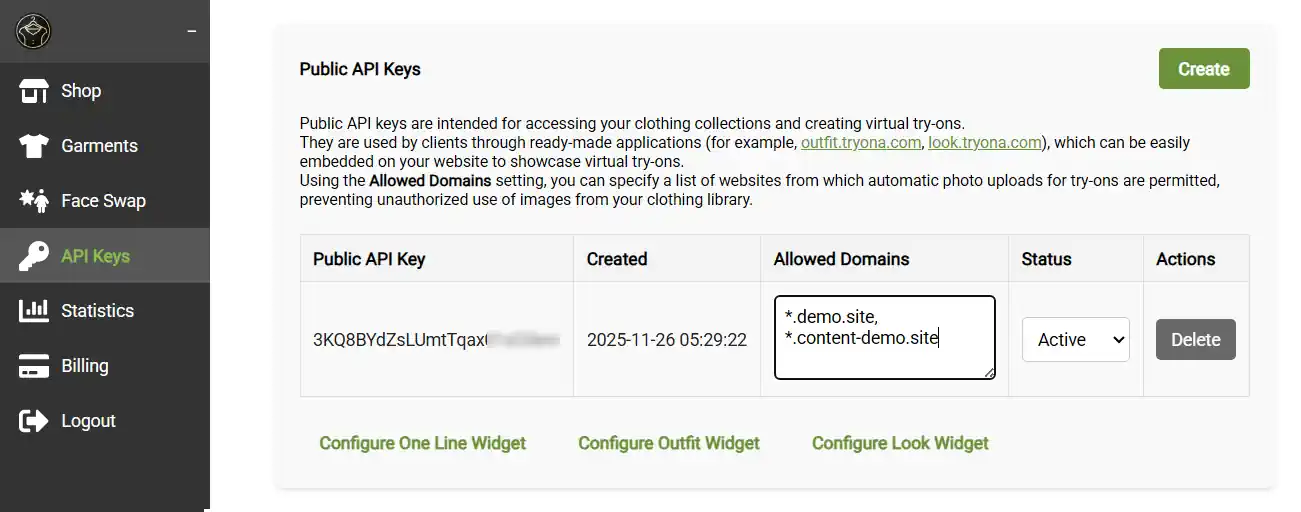
-
Add the iframe
Place this HTML where you want the viewer:
Adjust<iframe src="https://outfit.tryona.com?apiKey=[Your Public API Key]" width="800" height="600" frameborder="0" allowfullscreen> </iframe>widthandheightas needed. -
Pre-load a garment
Append query parameters to thesrcURL:guid=[Garment UID]uid is taken from your uploaded garments library
or
apiKey=[Public API Key]Use your public api key from API Keys sectionimageUrl=[Image URL]Garment image url. You can limit urls in Allowed Domains section for your public keyurl=[Product Page URL]Link to your page with garmentdescription=[Product Title]Description for your garmenthideIntro=1- hide the intro instructionshideSearch=1- hide garments searchhideText=1- hide all text captions, including garment description and seller captionhideLinks=1- hide link to garment page button
<iframe src="https://outfit.tryona.com?apiKey=[Your Public API Key]& imageUrl=https%3A%2F%2Fapi.tryona.com%2Fv1%2Fgarment%2Fimage%2F01992e7f-d8d5-70bb-9fbf-906bee33a35c%3Fheight%3D1200& url=https%3A%2F%2Fshop.com%2Fproduct%2Fshirt& description=Blue%20Cotton%20Shirt&hideIntro=1" width="800" height="600" frameborder="0" allowfullscreen> </iframe> - You can manage the added garments and view tryon statistics in the Tryona dashboard.
Tips: Use CSS for responsive sizing.